
Connecting to a Qlik Sense Server
Details on how to configure the connection from Butler SOS to Qlik Sense Enterprise on Windows.
Mandatory
These settings are mandatory.
They must exist in the config file and be correctly set for Butler SOS to work.
What's This?
In order to interact with a Qlik Sense Enterprise on Windows (QSEoW) environment, Butler SOS needs to know a few things about that environment. This is true no matter if the Sense cluster consists of a single Sense server or many.
Settings in Main Config File
Butler-SOS:
  ...
  ...
  # Certificates to use when connecting to Sense. Get these from the Certificate Export in QMC.
  cert:
    clientCert: <path/to/cert/client.pem>
    clientCertKey: <path/to/cert/client_key.pem>
    clientCertCA: <path/to/cert/root.pem>
    clientCertPassphrase: <certificate key password, if one was specified when exporting certificates from Sense QMC>
    # If running Butler in a Docker container, the cert paths MUST be the following
    # clientCert: /nodeapp/config/certificate/client.pem
    # clientCertKey: /nodeapp/config/certificate/client_key.pem
    # clientCertCA: /nodeapp/config/certificate/root.pem
    # clientCertPassphrase:
  ...
  ...
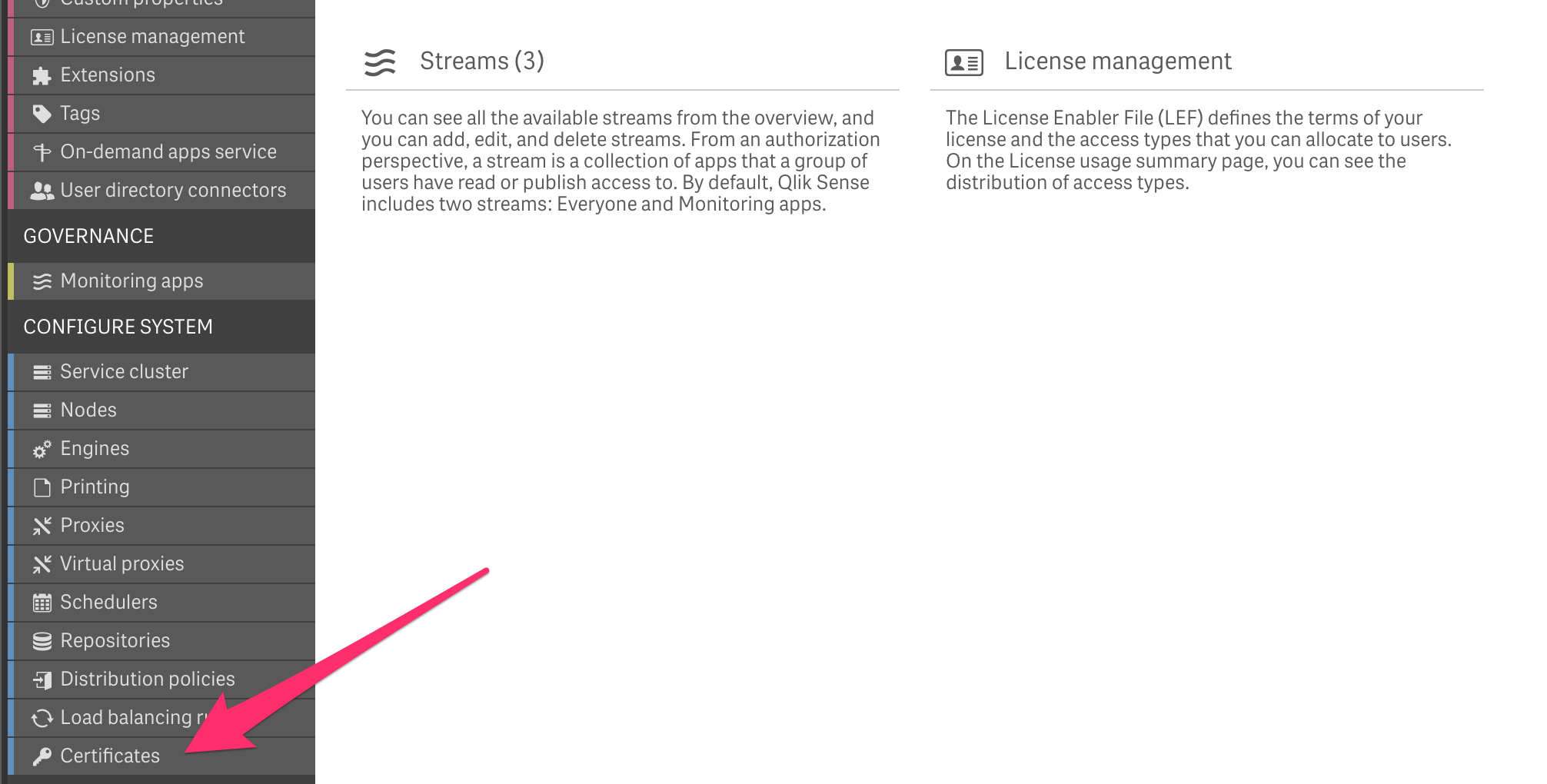
Qlik Sense Certificates
Butler SOS uses certificates to authenticate with Qlik Sense. These certificates must be exported from the Qlik Management Console (QMC).
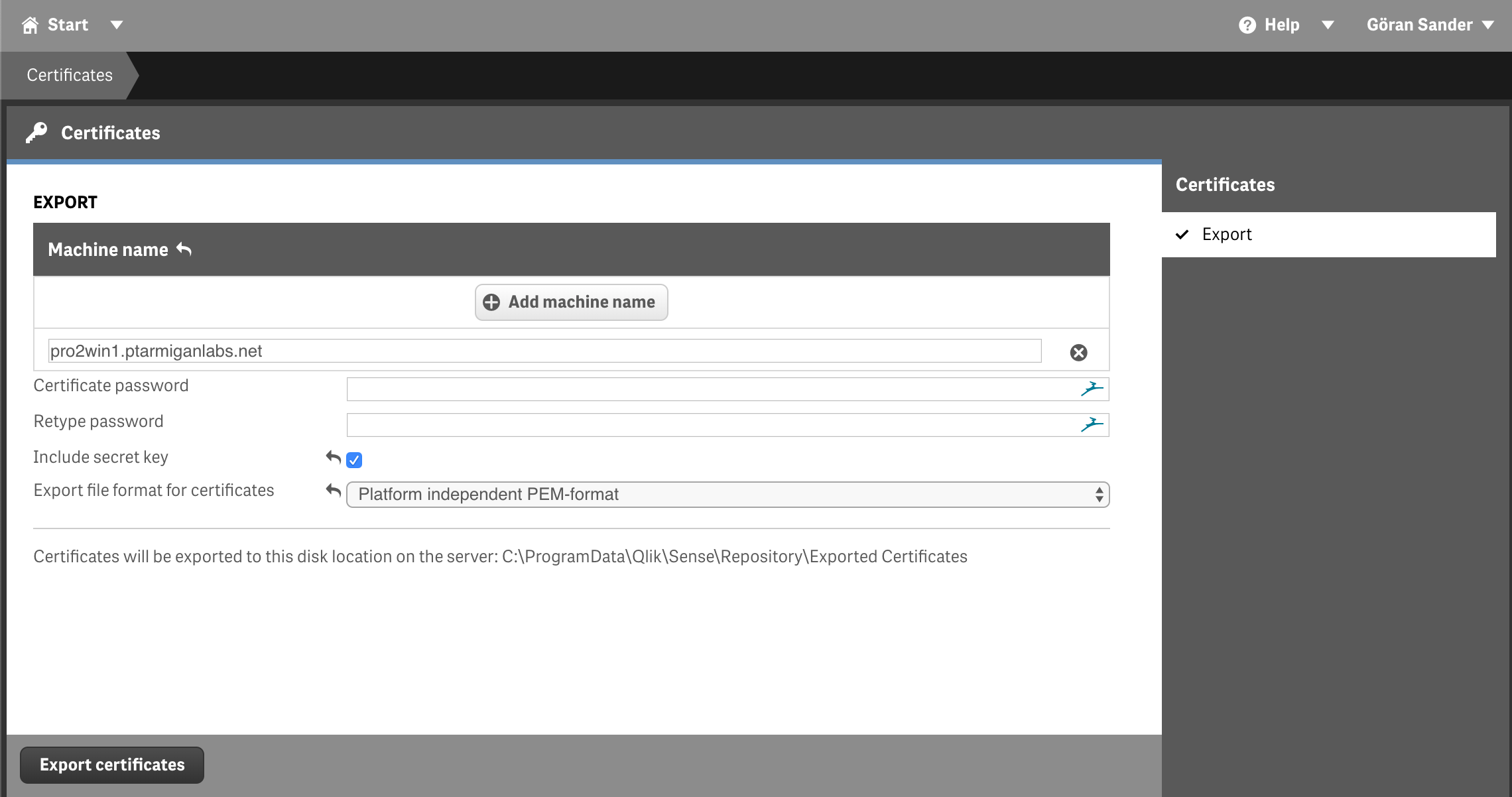
To export certificates you need to provide a few pieces of information:
Machine name: The IP or full host name that Butler SOS will use when calling Qlik Sense APIs. For example, if Butler SOS gets data from
server1.my.domain(i.e. the config settingButler-SOS.serversToMonitor.servers[].hostis set toserver1.my.domain), the valueserver1.my.domainshould be entered as "machine name" when exporting the certificates from the QMC.Single export: You only need to export certificates from one server in multi-server Sense clusters. The exported certificate can be used to access and get data from any server in the cluster.
Password protection: Butler SOS can handle certificates with or without password protection. If you choose to use a password, you must enter that password in the Butler SOS config file.
Include secret key: Check the "Include secret key" check box.
PEM format: Export certificates in PEM format.
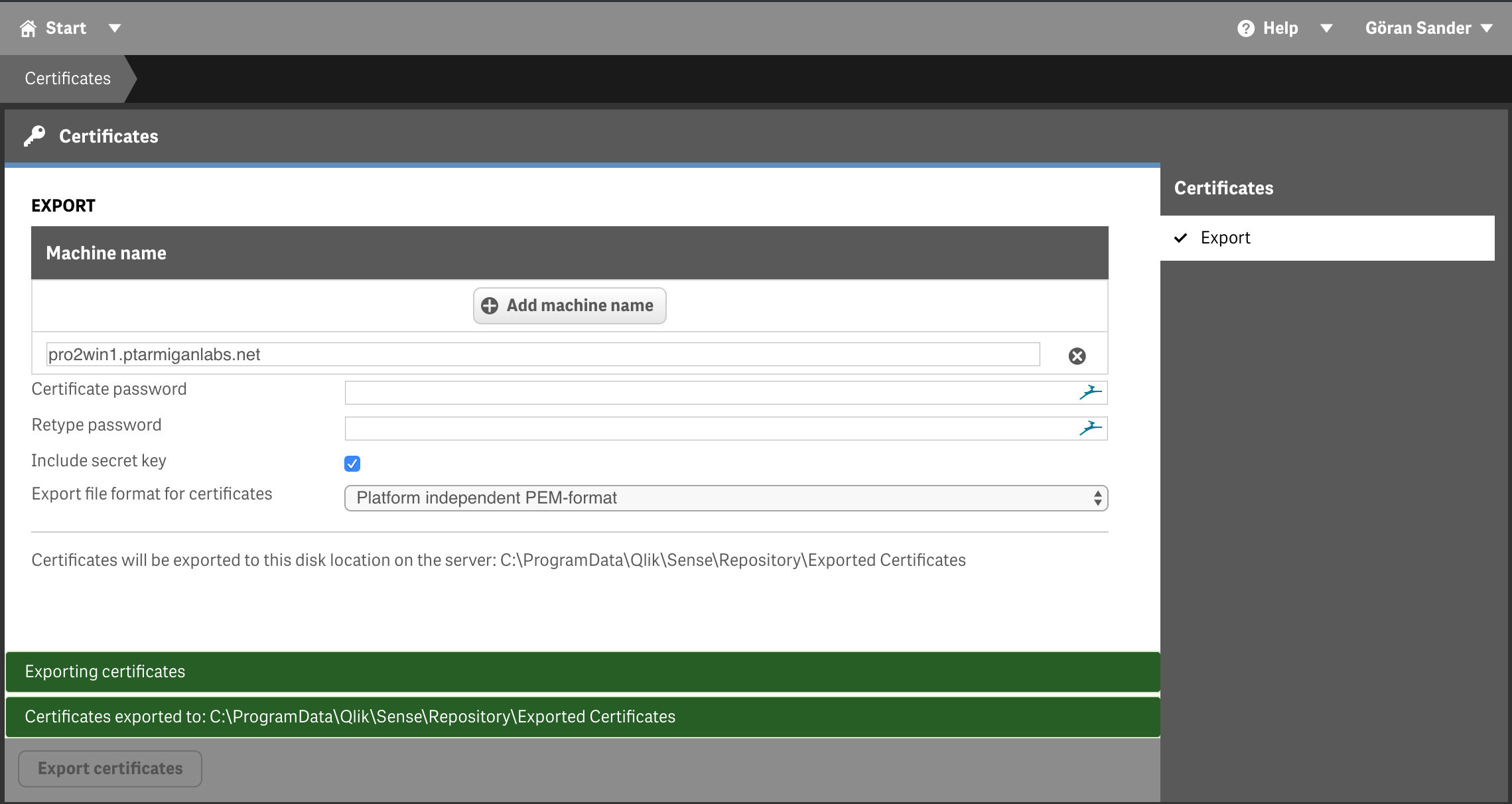
Then click the "Export certificates" button. If all goes well the certificates are now exported to a folder on the Sense server to which you are connected (i.e. the server hosting the virtual proxy you are connected to).
The exported certificate files will be used when configuring Butler SOS.
Common Certificate Errors
If you see errors related to certificates when starting Butler SOS, check the following:
- Certificate paths: Make sure the paths to the certificate files are correct in the config file.
- Certificate permissions: Make sure Butler SOS has read access to the certificate files.
- Certificate passphrase: If you specified a passphrase when exporting the certificates, make sure it's correctly entered in the config file.
- Machine name mismatch: The machine name used when exporting certificates must match the host names used in Butler SOS configuration.